How to Use The New GetSetUp Playlist Feature


Plan your expenses and deductions strategically each year
Egestas tincidunt ipsum in leo suspendisse turpis ultrices blandit augue eu amet vitae morbi egestas sed sem cras accumsan ipsum suscipit duis molestie elit libero malesuada lorem ut netus sagittis lacus pellentesque viverra velit cursus sapien sed iaculis cras at egestas duis maecenas nibh suscipit duis litum molestie elit libero malesuada lorem curabitur diam eros.
- Morbi fringilla molestie magna sed dictum. Praesent pharetra turpis augue.
- Cras mi purus, viverra vitae felis sit amet, tincidunt fringilla lorem.
- non mattis urna ex nec sem. Donec varius diam et suscipit venenati proin tincidunt
- Quisque euismod posuere lacus sit amet volutpat. Praesent vel imperdiet
Maintain accurate and organized financial records for easy reporting
Tincidunt pharetra at nec morbi senectus ut in lorem senectus nunc felis ipsum vulputate enim gravida ipsum amet lacus habitasse eget tristique nam molestie et in risus sed fermentum neque elit eu diam donec vitae ultricies nec urna cras congue et arcu nunc aliquam at.

Talk to a tax professional for expert guidance
At mattis sit fusce mattis amet sagittis egestas ipsum nunc scelerisque id pulvinar sit viverra euismod. Metus ac elementum libero arcu pellentesque magna lacus duis viverra pharetra phasellus eget orci vitae ullamcorper viverra sed accumsan elit adipiscing dignissim nullam facilisis aenean tincidunt elit. Non rhoncus ut felis vitae massa mi ornare et elit. In dapibus.
- Morbi fringilla molestie magna sed dictum. Praesent pharetra turpis augue.
- Cras mi purus, viverra vitae felis sit amet, tincidunt fringilla lorem.
- non mattis urna ex nec sem. Donec varius diam et suscipit venenati proin tincidunt
- Quisque euismod posuere lacus sit amet volutpat. Praesent vel imperdiet
Personalized Marketing: AI helps in analyzing customer data to create personalized marketing campaigns
At mattis sit fusce mattis amet sagittis egestas ipsum nunc. Scelerisque id pulvinar sit viverra euismod. Metus ac elementum libero arcu pellentesque magna lacus duis viverra. Pharetra phasellus eget orci vitae ullamcorper viverra sed accumsan. Elit adipiscing dignissim nullam facilisis aenean tincidunt elit. Non rhoncus ut felis vitae massa. Elementum elit ipsum tellus hac mi ornare et elit. In dapibus.
“Amet pretium consectetur dui aliquam. Nisi quam facilisi consequat felis sit elit dapibus ipsum nullam est libero pulvinar purus et risus facilisis”
Use accounting and tax software to make management easier
Placerat dui faucibus non accumsan interdum auctor semper consequat vitae egestas malesuada quam aliquam est ultrices enim tristique facilisis est pellentesque lectus ac arcu bibendum urna nisl pharetra bibendum felis senectus dolor commodo quam elementum sapien suscipit qat non elit sagittis aliquam a cursus praesent diam lectus tellus mi lobortis in amet ac imperdiet feugiat tristique nulla eros mauris id aenean a sagittis et pellentesque integer ultricies sit non habitant in cras posuere dolor fames.
If you've spent any time on GetSetUp, you already know the classes are only part of the magic. It's the people, the connection, and the confidence that comes from learning something new alongside peers who get it. That experience just got an upgrade.
We didn't set out to just add features. We set out to remove friction: the small, frustrating moments that can get in the way of learning something new. Here's everything that's changing, and how to get the most out of it.
The first thing you'll notice is that GetSetUp looks different. We've given the platform a cleaner, more modern design, so it's easier to browse classes, find instructors you love, and see what's happening as soon as you log in. Less hunting, more learning.
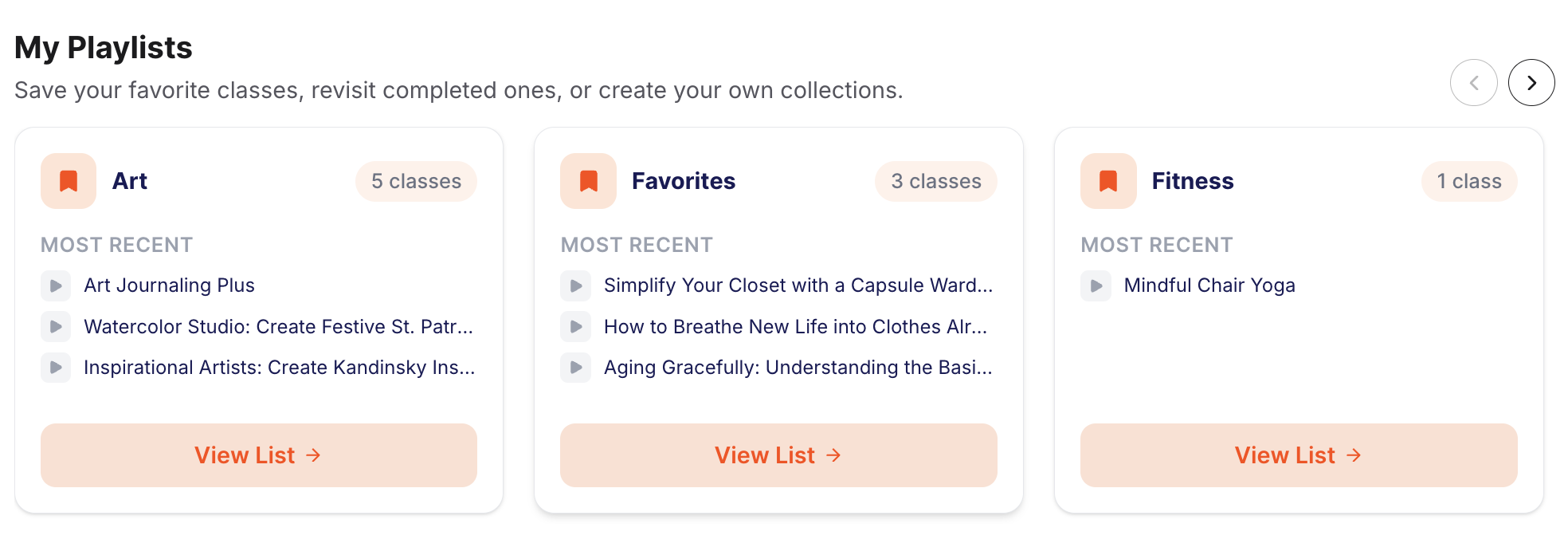
What Is a GetSetUp Playlist?
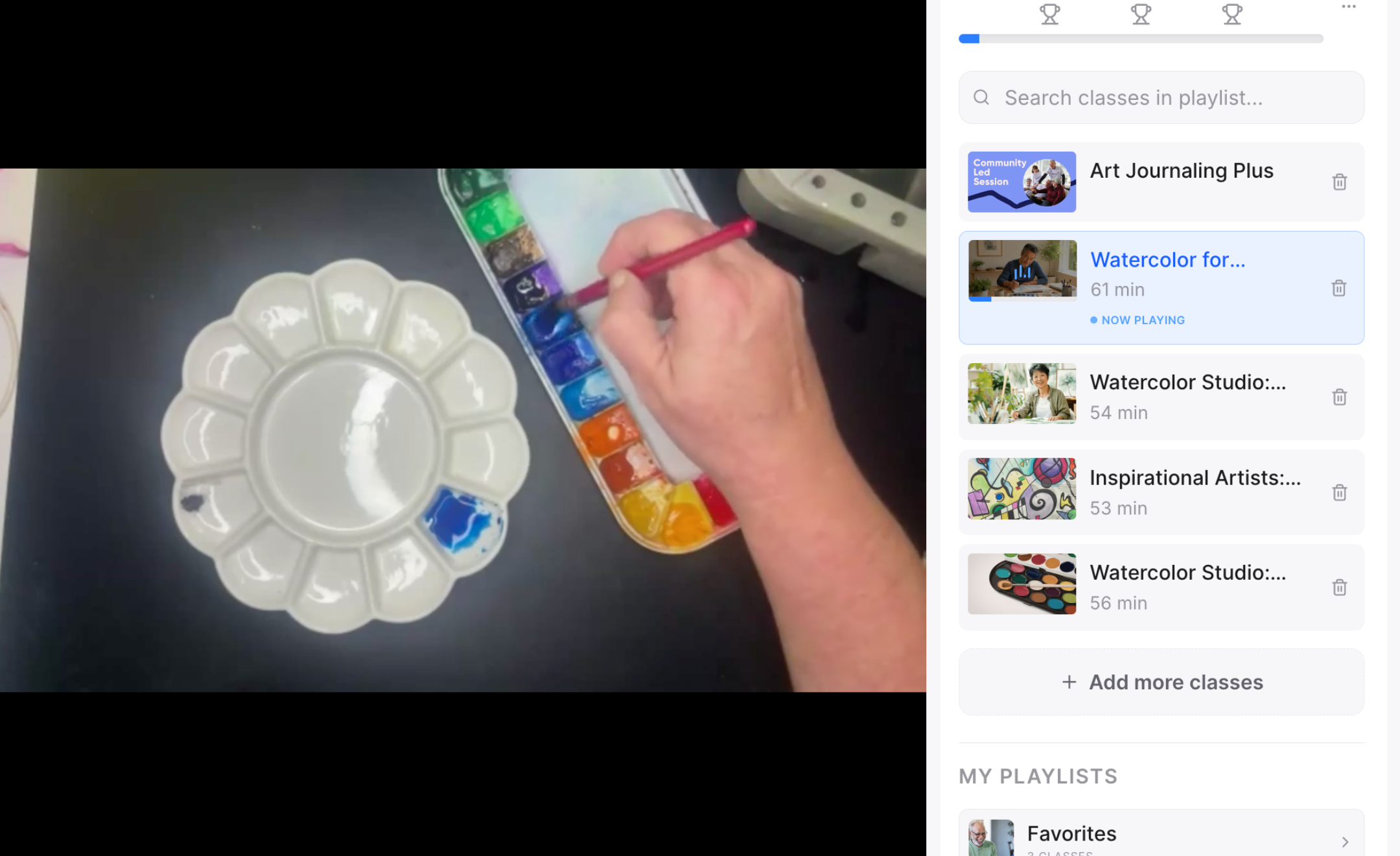
Think of a playlist as a personal folder for classes: a way to group live sessions, replays, or topics you care about (say, "Watercolor Basics" or "Sunday Morning Stretch") so you're not scrolling through the whole catalog every time you want to learn.
How to Find and Use Playlists: Step-by-Step Guide
1. Log in to your GetSetUp account. Playlists are tied to your profile, so you'll need to be signed in to create or view one.
2. Find a class you want to save. Browse the catalog, search for a topic, or open a class you're already enrolled in.
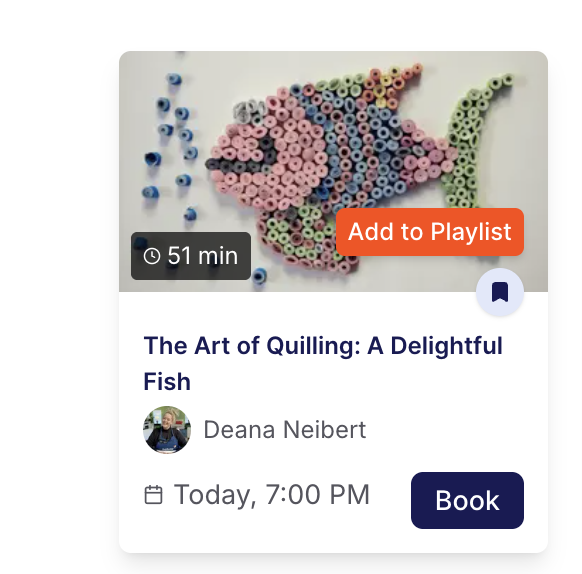
3. Click on the "Add to Playlist" option on the class page. This usually appears as a save/bookmark icon or a button near the class title or description.
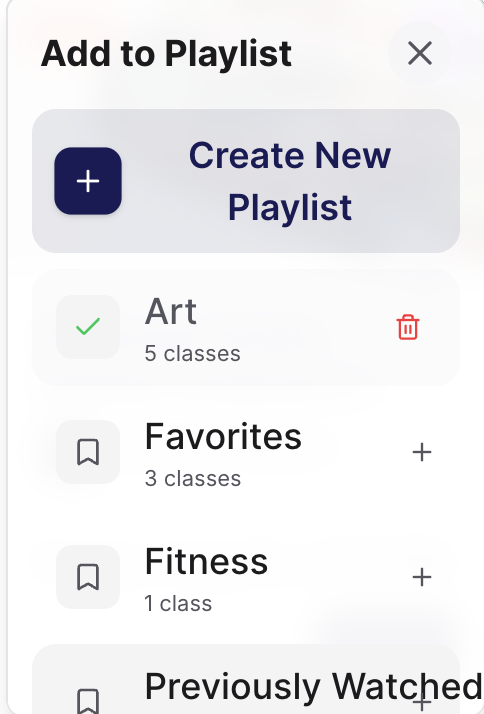
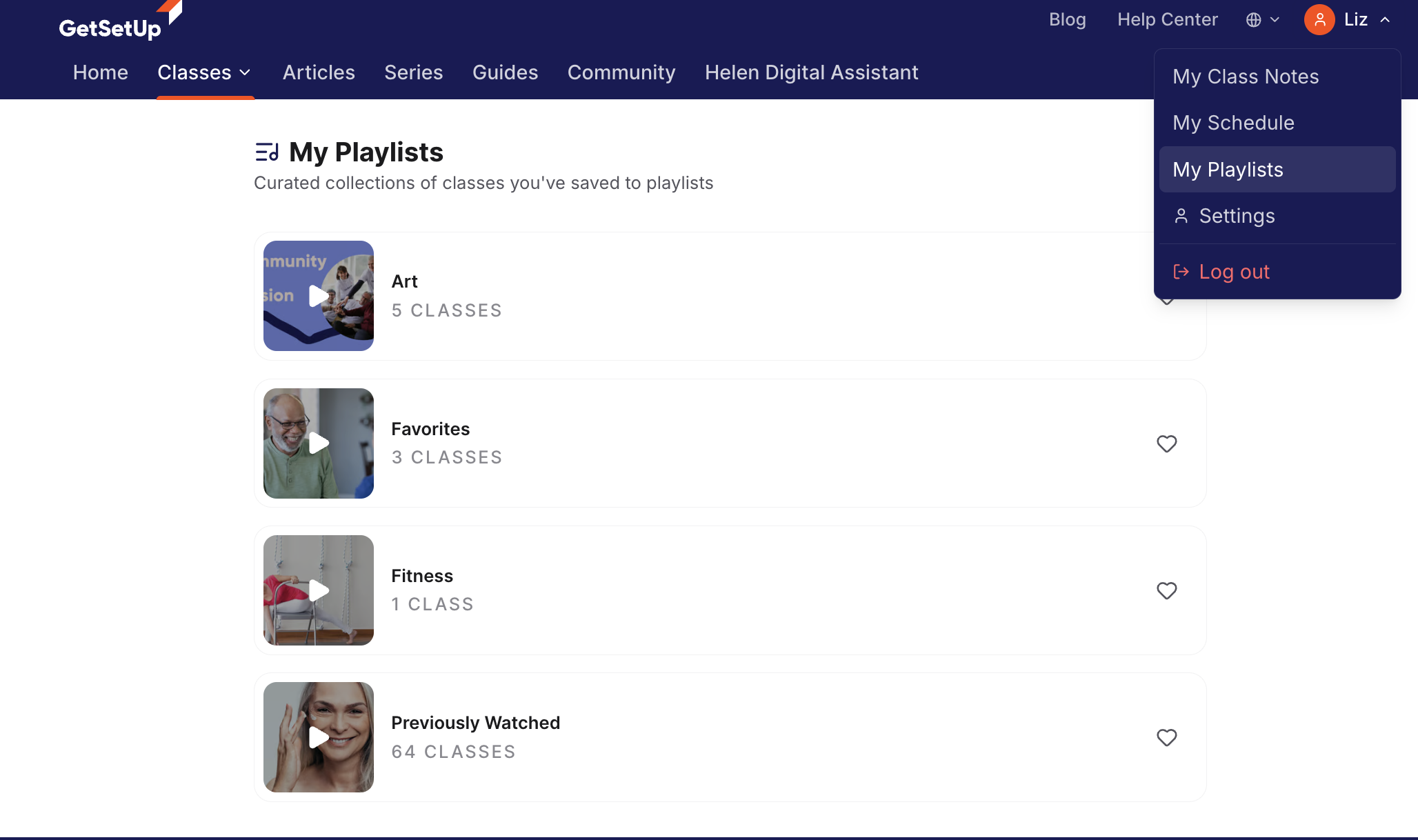
4. Create a new playlist or add to an existing one. The first time you save a class, you'll be prompted to name a new playlist (for example, "Try Next" or "Favorites"). You can create up to 4 playlists. After that, you can keep adding classes to it or start additional playlists for different interests.
5. Repeat for any class you want to keep track of. You can save upcoming classes and past recordings, so your playlist can mix what you plan to attend with what you want to rewatch.
6. Access your playlists anytime from your account or dashboard area. Once created, your playlists live in one place, so you don't have to re-search the catalog to find something you already know you love. Go to your profile, then select the playlist section.
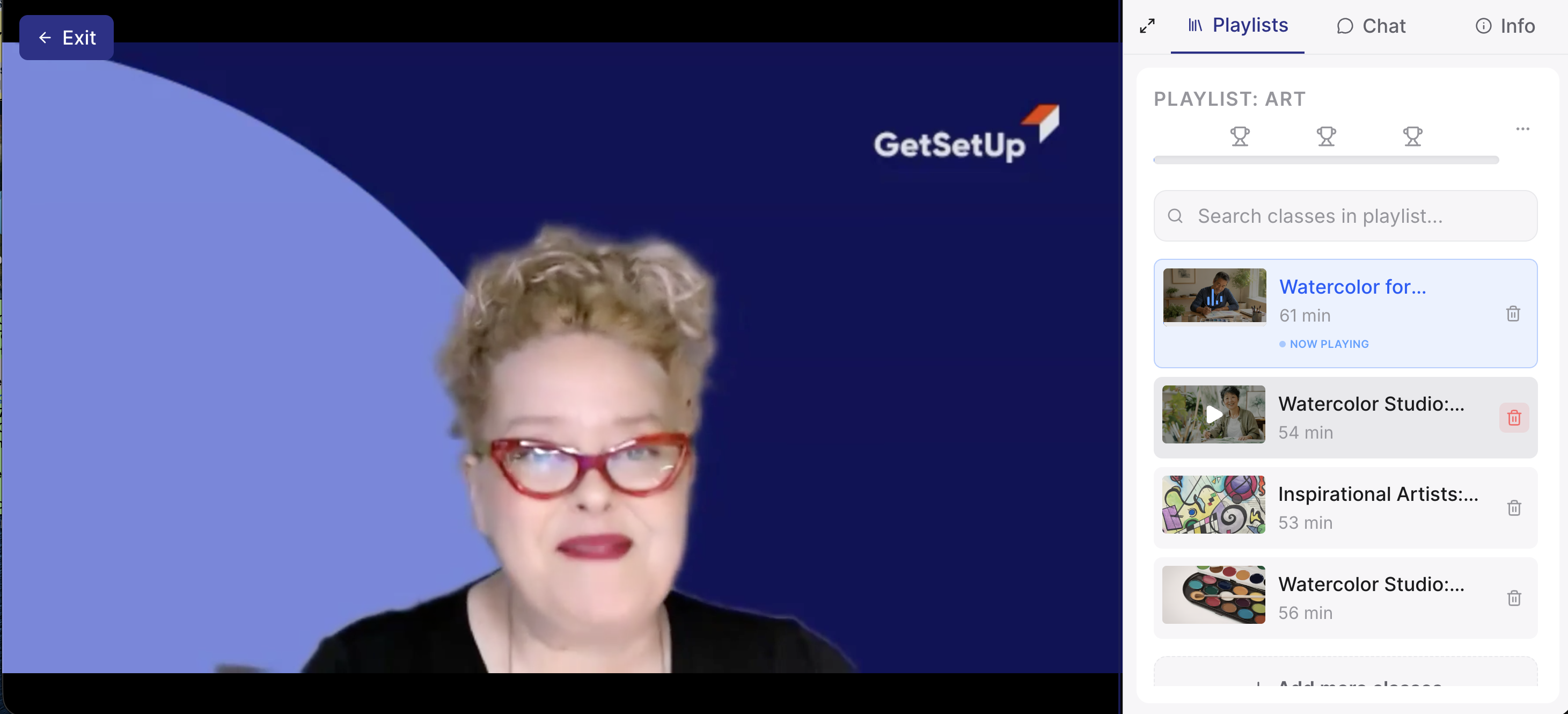
7. Edit or remove classes as your interests change. Your playlists aren't fixed. Remove a class you've outgrown, and reorganize as you find new favorites.
Why it's worth using: instead of relying on memory (or a sticky note) to track "that class I wanted to try," playlists give you one running, always-accessible list. It's a small feature, but it removes the exact kind of friction GetSetUp built this update around.
Bring GetSetUp to your organization
We partner with Medicare Advantage plans, dual eligible plans, healthcare providers, Departments of Health & Human Services, Government aging services and more.